IntelliJ IDEA 常用插件及配置
实用插件
- .ignore
- Grep Console
- Rainbow Brackets
- Lombok
- 注意在 settings->Build, Exection, Deployment->Compiler->Annotation Processors 开启 Enable annotation processing。
- Maven Helper
- Key Promoter X
- MyBatisX
- Spring Explyt
- Statistic 代码统计
- File Expander explore archive-based file in project view
- GitToolBox Git status
- GenerateSerialVersionUID
- Imefix 修复Win11微软中文输入法无法使用SHIFT F6, SHIFT F10快捷键
- GenerateAllSetter
- Developer Tools
- Nginx Configuration
- Alibaba Java Coding Guidelines(Fix Some Bug)
- Qoder CN (Formerly Lingma) - Alibaba Cloud AI Coding Assistant
- GitHub Copilot - Your AI Pair Programmer
常用插件
- String Manipulation
- VisualVM Launcher
- GsonFormat
- Database Navigator 数据库连接工具
- RestfulTool 接口测试,类似于 postman 一样
- CodeGlance3 显示代码缩略图
- Vuesion Theme idea 皮肤
- Flowable BPMN visualizer
- 启用 Vuesion Theme 后,再禁用,代码背景颜色变成白色的问题
- setting -> Editor -> Color Schema -> 选择 Schema 为 Darcula -> 保存。
- 启用 Vuesion Theme 后,再禁用,代码背景颜色变成白色的问题
- arthas idea Alibaba Arthas command. 进入代码片段,选择你要诊断的类或者方法上面,右击打开 Arthas 命令,选择一项,即可自动生成命令,省去你敲打命令的时间。
常用配置
设置软件启动时选择项目进入,取消关闭确认弹窗
Settings -> Appearacne & Behavior -> System Settings:
去掉复选框对勾:Confirm before exiting the IDE
去掉复选框对勾:Reopen projects on startup
菜单栏字体和大小 (现在默认的就挺好)
Settings -> Appearacne & Behavior -> Appearance:
- 勾选复选框:Use custom font: Microsoft YaHei UI; Size: 12
编辑代码的字体和大小
Settings -> Editor -> Font:
- Font: Consolas
- Size: 16
- Line height: 1.2
取消字符串严格按照大小写匹配
Settings -> Editor -> General -> Code Completion:
- 去掉复选框对勾:Match case:
双斜杠注释改为紧跟代码头
Settings -> Editor -> Code Style -> Java -> Code Generation(tab 页签,看不到的话,点击页签最右侧的下三角图标):
- 去掉复选框对勾:Line comment at first column
- 打上复选框对勾:Add a space at comment start
CTRL + 鼠标滚轮,改变字体大小(缩放)
Settings -> Editor -> General:
- 打上复选框对勾:Change font size (Zoom) with Ctrl+Mouse Wheel
设置 Project 中间 package 的不折叠(去掉对勾)
点击项目右侧竖着的三个点的图标按钮
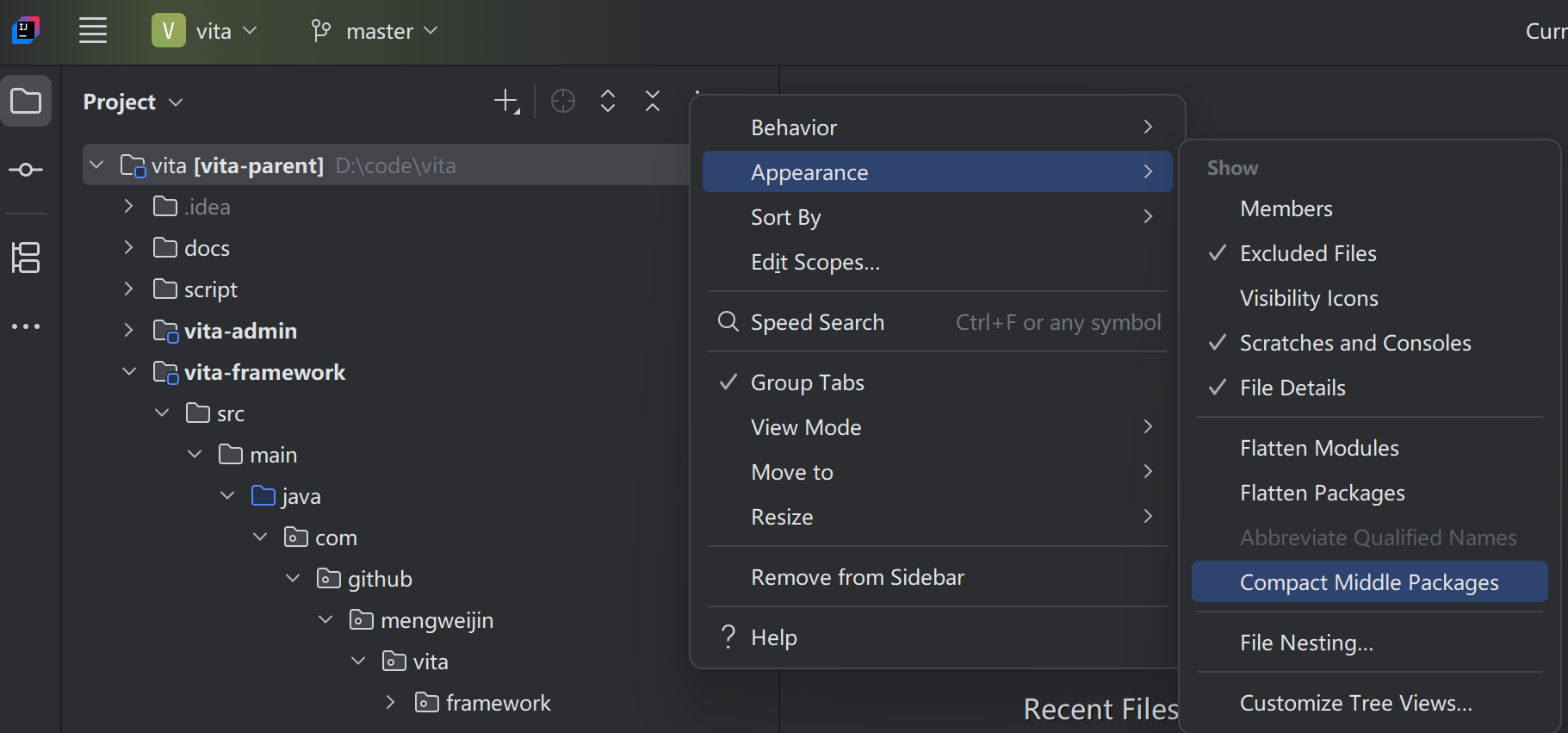
显示 Project 中文件的详细信息
点击项目右侧竖着的三个点的图标按钮
勾选:Appearance -> File Details
设置 tab 页单行显示
Settings -> Editor -> General -> Editor Tabs:
以下两个打对勾:
- Show tabs in:
- One row, and if tabs don't fit:
- Scroll the tabs panel
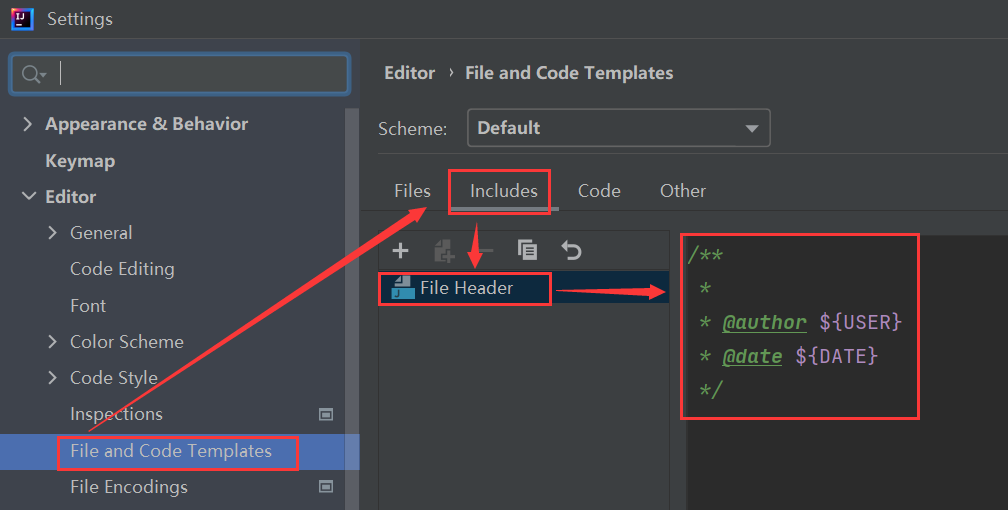
创建文件时,自动生成作者和时间信息
也可以直接把 ${USER} 写为固定值
显示行号和方法分割线
Settings -> Editor -> General -> Appearance:
- Show line numbers
- Show method separators
显示内存使用情况
View -> Appearance -> Status Bar Widgets -> Memory Indicator(打对勾)
快速添加明确的导入包和快速优化导入包(自动帮助删除无用的导入)
Settings -> Editor -> General -> Auto Import:
- 打对勾:Add unambiguous imports on the fly
- 打对勾:Optimize imports on the fly
取消多个导入包 import 自动合并成 _(设置为 9999 个才合并成 _)
Settings -> Editor -> Code Style -> Java -> Imports(tab 页签):
- Class count to use import with '*': 9999
- Names count to use static import with '*': 9999
UTF-8 编码,及 properties 文件 Transparent native-to-ascii conversion
Settings -> Editor -> File Encodings:
- Global Encoding: UTF-8
- Project Encoding: UTF-8
- Default encoding for properties files: UTF-8;
- 打对勾:Transparent native-to-ascii conversion
- Create UTF-8 files: with NO BOM
Maven 开启总是更新 SNAPSHOT 包
Settings -> Build, Execution, Deployment -> Build Tools -> Maven
勾选:Always update snapshots
Maven deploy 中文乱码
Settings -> Build, Execution, Deployment -> Build Tools -> Maven -> Runner:
增加以下任意一个参数,优先建议 UTF-8, 不行了再改为 GBK。
- VM Options: -Dfile.encoding=UTF-8
- VM Options: -Dfile.encoding=GBK
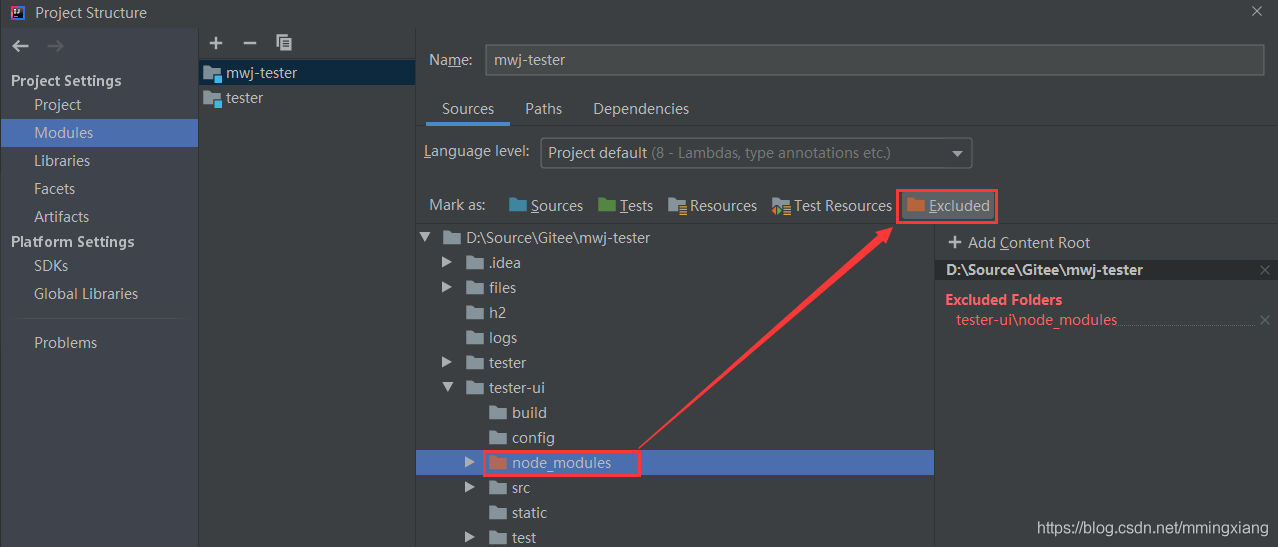
打开 vue 工程时,卡在加载 Index(是由于 vue 工程 node_modules 下文件太多了)
设置 JVM 内存大小
Help -> Edit Custom VM Options... -> (idea64.exe.vmoptions 文本编辑) 添加下面一行参数:
-Xmx2048m设置 在单元测试中,可以使用 Scanner 使开发者与控制台交互
Help -> Edit Custom VM Options... -> (idea64.exe.vmoptions 文本编辑) 添加下面一行参数:
-Deditable.java.test.console=true编写的 *.sh 脚本上传到 Linux 服务器执行报错(由于换行符差异导致)
一般为在 Windows 下用 IDEA 导入项目编译时,默认使用 Windows(\r\n)下的文件换行符,而 Unix 类操作系统换行符为 \n,所以 idea 做以下设置:
idea 高版本:Settings -> Editor -> Code Style -> Shell Script: 勾选 Use Unix line separators(\n)
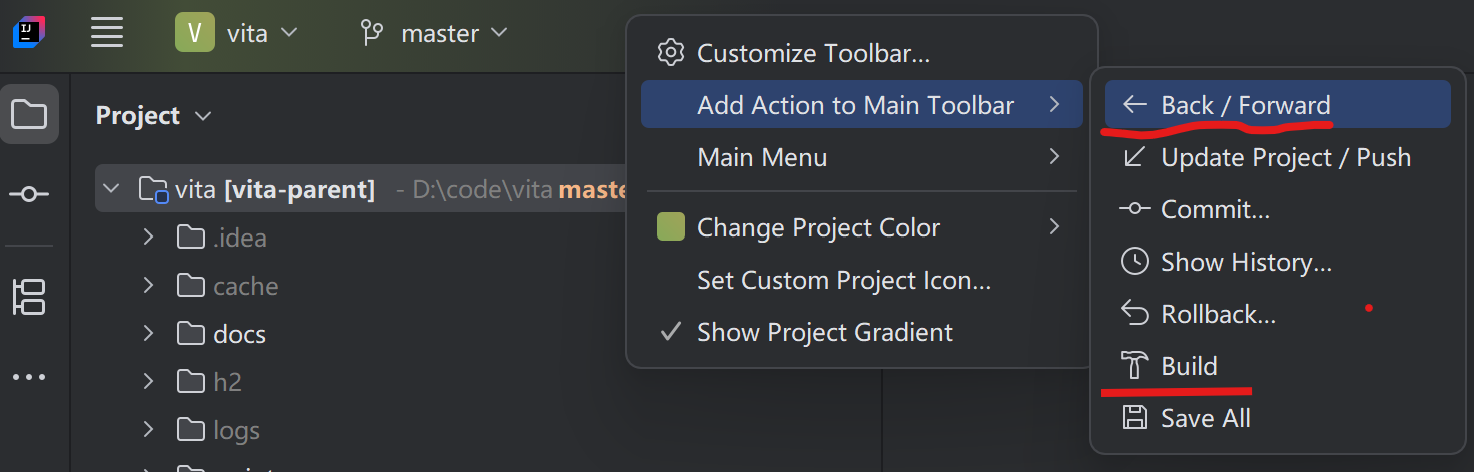
显示基本导航按钮(<—— 和 ——>)用来回到上一个光标位置
在最上面空白处,右键。
选择 【Add Action to Main Toolbar】——>【Back / Forward】
选择 【Add Action to Main Toolbar】——>【Build】